Viewing from your main phone
Once the camera is up, everything happens in the Snitchy app on your main phone. Here's your way around it.
The status bar tells on the camera
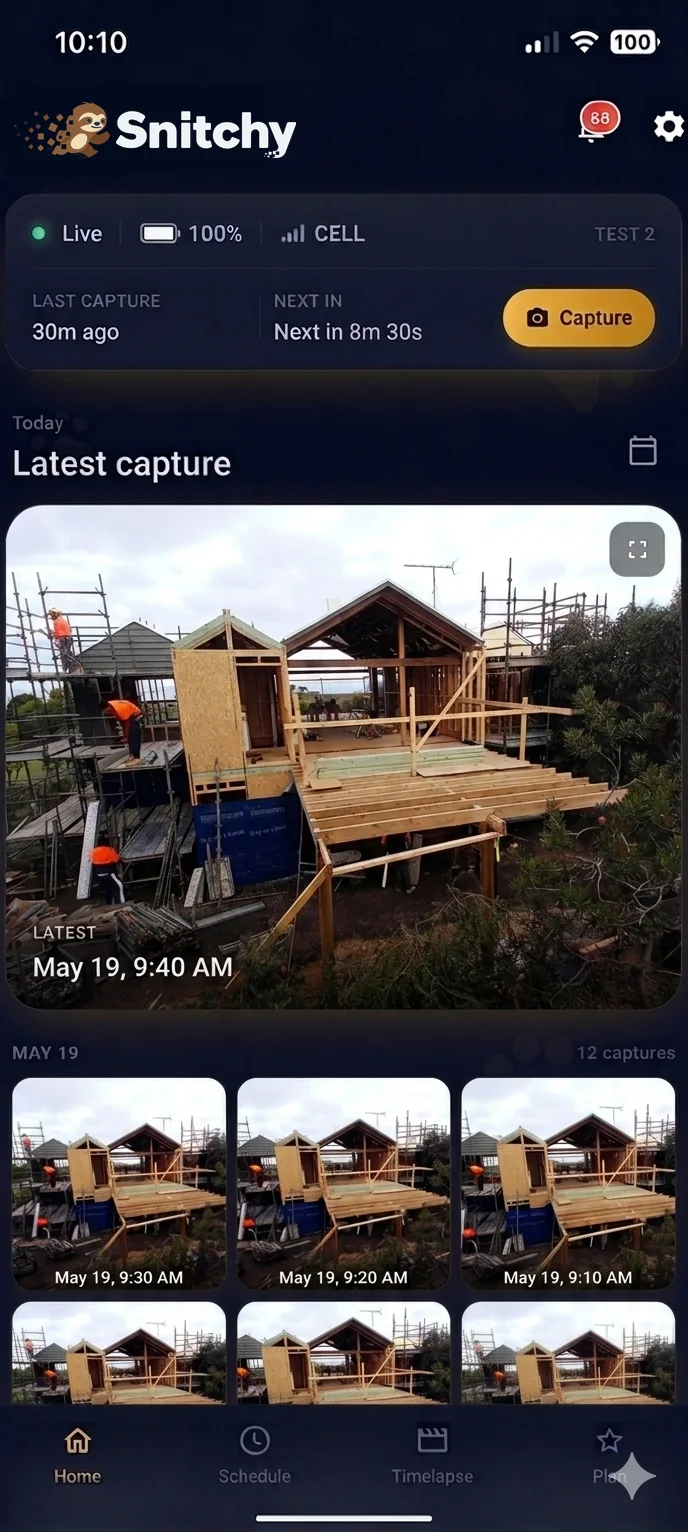
At the top of Home you can see the camera is Live, its battery level, its signal, when it last captured, and when the next shot is due. If any of that looks off, you'll know before a week of footage goes missing.
Grab a frame right now
The Capture button asks the camera for a photo on the spot - handy for checking the site without leaving your desk, or after a milestone like a pour or a lift.
Scrub back through the day
Below the latest capture sits every shot from today, newest first. Tap any one to view it full screen, or use the calendar to jump to an earlier day.
Schedule: when it films
The Schedule tab sets working hours and how often a photo is taken. Outside those hours the camera rests - slow and steady, like the mascot.
Timelapse: the film so far
The Timelapse tab plays the build from day one to now. Watch weeks of work in seconds, any time - no need to wait for the job to finish.